My Workbook · how it works
Their week. Their way.
A workbook built around what one learner is into, on their own tablet. Every page of the printed workbook, with the help built in. Here is how it all works.
The whole loop, start to finish.
Once a tablet is set up, the learner does step 1 alone. Steps 2 to 4 are about five minutes of staff time a week.
- 0Tablet · staff · once
Set up the tablet
On Build it, press and hold Staff: press and hold at the bottom. Add a learner code: the tablet number works well (T14). It needs a number. Never a name: the list of who is who stays on paper.
New learner on the same tablet: on that staff screen, hold Remove learner for 2 seconds. It takes the old code's answers off the tablet.
- 1Tablet · learner · about 20 minutes
Build it
The learner makes their own workbook cover while they answer: about 30 quick taps on what they are into, how they like to learn, how reading, writing and math feel, and where they are headed. Then a 2-minute math warm-up and three short tasks:
- Stories: a 3-minute story with word choices. It sets the reading level.
- Numbers: a 2-minute page of problems. It sets the math level and the skills to practice first.
- My Words: one minute to think, three to write. It sets the writing band.
No adult is needed for any of it. The oral reading check (a teacher listening side by side) is optional. Private details a learner types are left out on their own.
Build it › - 2Tablet, then laptop · staff
Get the order ticket
On the learner's tablet: Build it › hold Staff › scroll to Order ticket. It is a code and the same information as text, with no name and no raw scores. Bring it to the laptop's Staff laptop page (Chrome) any one of these ways:
Staff laptop ›CameraHold the tablet up to the laptop.A photoSomeone takes a picture of the code and emails it. Read a photo of the code.Copy and sendOn the staff screen, Copy the ticket to send. Paste the email on the Staff laptop page.Printed slipPrint the slip on the tablet's staff screen. - 3Laptop · staff
Make it
Press Copy for the maker. The learner's profile, levels, picks and the lessons already done are filled into the Custom Curriculum Prompt for you. (The first time only: choose the prompt file from My Workbook › prompt; the laptop keeps it.)
Paste it into a new Claude Opus chat and attach the example file (its button is right there). Opus gives back two files: the PDF for paper and the tablet file (ends in .json).
Check before you send: open My Workbook on the laptop, hold Staff, load the file. It runs the same checks as the tablet.
- 4Mac · staff
Send it
Save both files in the learner's own folder, My Workbook › Learners › T14. (First time: make the folder, named with the learner code only.) Then double-click Send-to-tablets in the My Workbook folder.
It gives each workbook its code, starting with the learner code (T14-W2-7QK), puts it on the site, and shows the codes. CODES.txt is the master list: workbook code, learner code, workbook. It holds codes, never names.
Fixed a file? Save over it and Send again: the code stays the same.
- 5Tablet · learner
Open it
On My Workbook, type the code. The tablet checks the file and opens it. It downloads once and then works with no internet. Until then, the learner sees their own cover marked In the works and where they are in these steps.
My Workbook › - 6Tablet, then laptop · staff
Score it, and next week
On the workbook page, hold Staff to score the written answers with the rubric and a model answer. The page then shows a results code and Copy the results to send. Read or paste it on the Staff laptop page like a ticket: the next Copy for the maker includes it, so next week builds on this one and never repeats a lesson.
When you are not in the room.
For a learner at another facility. Nothing that travels has a name on it.
- Their staff set up the tablet with a learner code (step 0) and the learner builds it (step 1).
- Their staff open the order ticket and press Copy the ticket to send, then paste it into an email to you. (Or they email a photo of the code.)
- On the Staff laptop page, paste the whole email under Or paste a ticket (or Read a photo of the code), then make and send it as usual (steps 3 and 4).
- Email them their lines of CODES.txt: codes only, no names. Their staff type each code on that learner's tablet.
- The facility's tablets need to be allowed to open curriculumbydesign.org.
My Packet: your own PDF, on the tablet.
A packet you made yourself becomes a tablet packet: the learner types right in it, gets Check my answer on practice questions, and can learn it with My Teacher.
- Save the PDF in My Workbook › Packets (or in a learner's folder, My Workbook › Learners › T14, when it is for one learner).
- Tell Claude "convert my packets". Claude turns each PDF into a tablet packet: every blank becomes a typing box, numbered questions become tap choices, the pictures come along, and Claude adds a few Try it questions, the hints and the right answers. Names, dates and any learner's name are left out.
- Claude saves the packet file beside the PDF. Double-click Send-to-tablets as usual. The code reads like T14-P1-7QK (P for packet).
- Type the code in My Workbook on the tablet. The packet opens with Read and look, Try it and My answers. The learner hands in My answers: the tablet scores the choices, and you read the written answers on the scoring screen.
Where things live on the Mac.
What the learner sees.
The real sample week, The Truth, as it looks on a tablet.
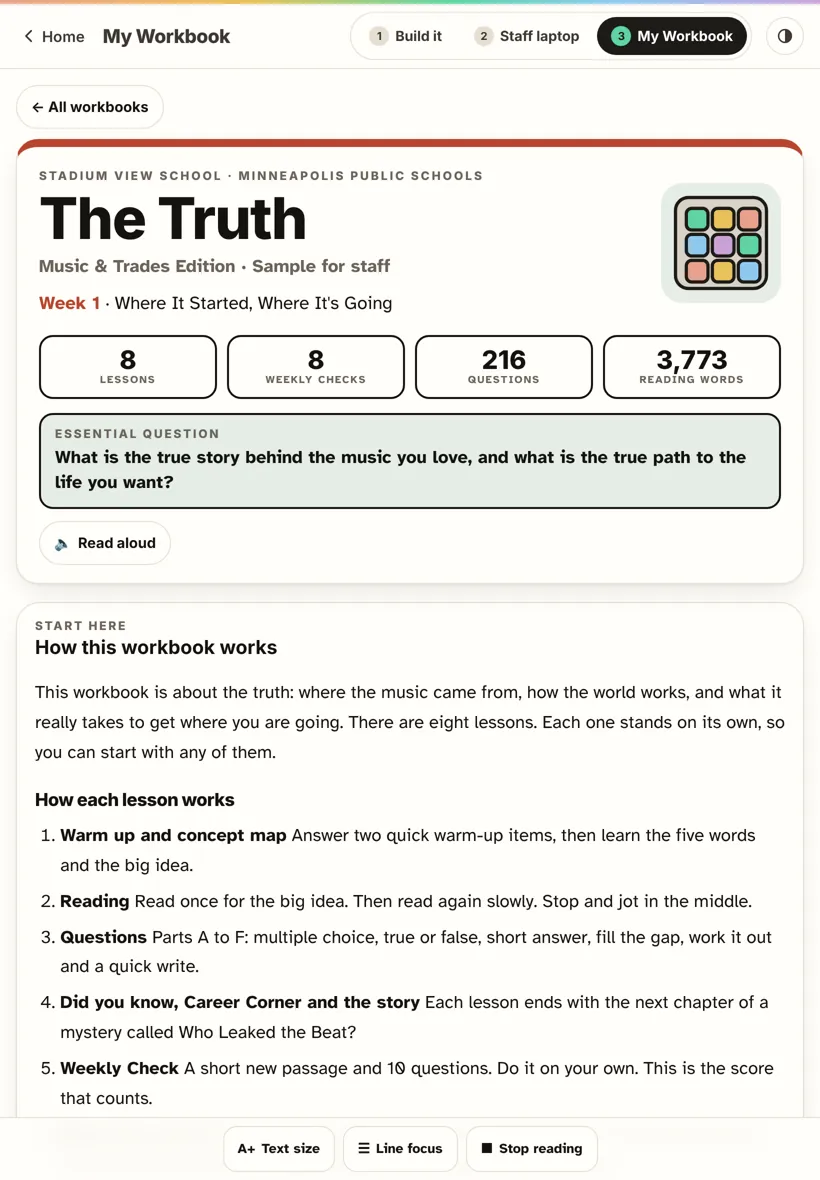
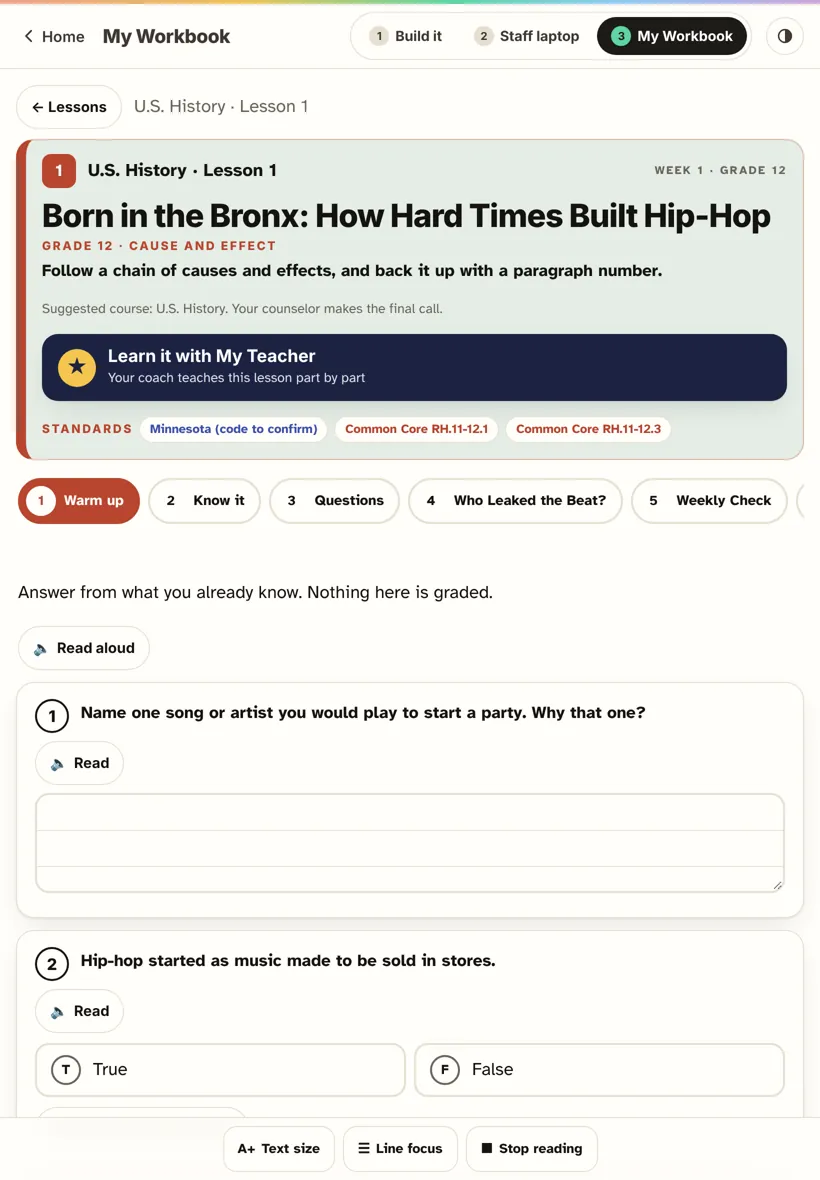
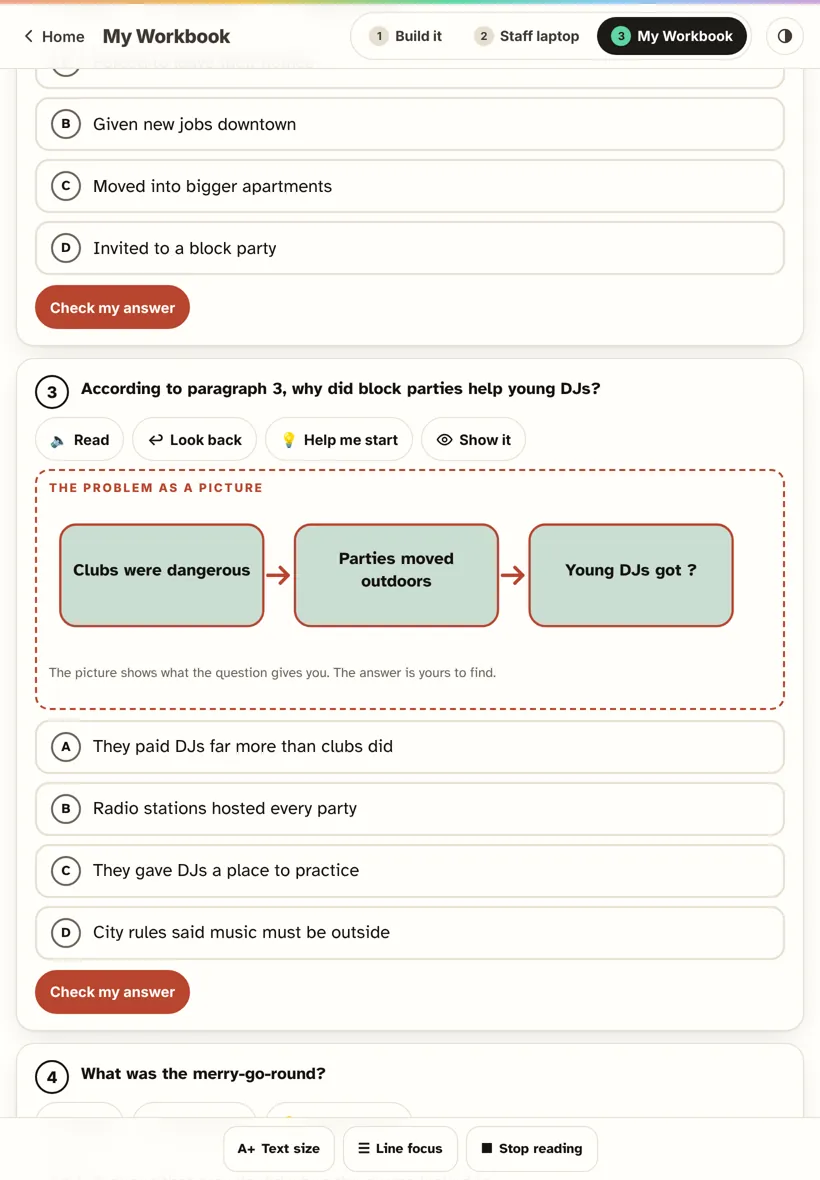
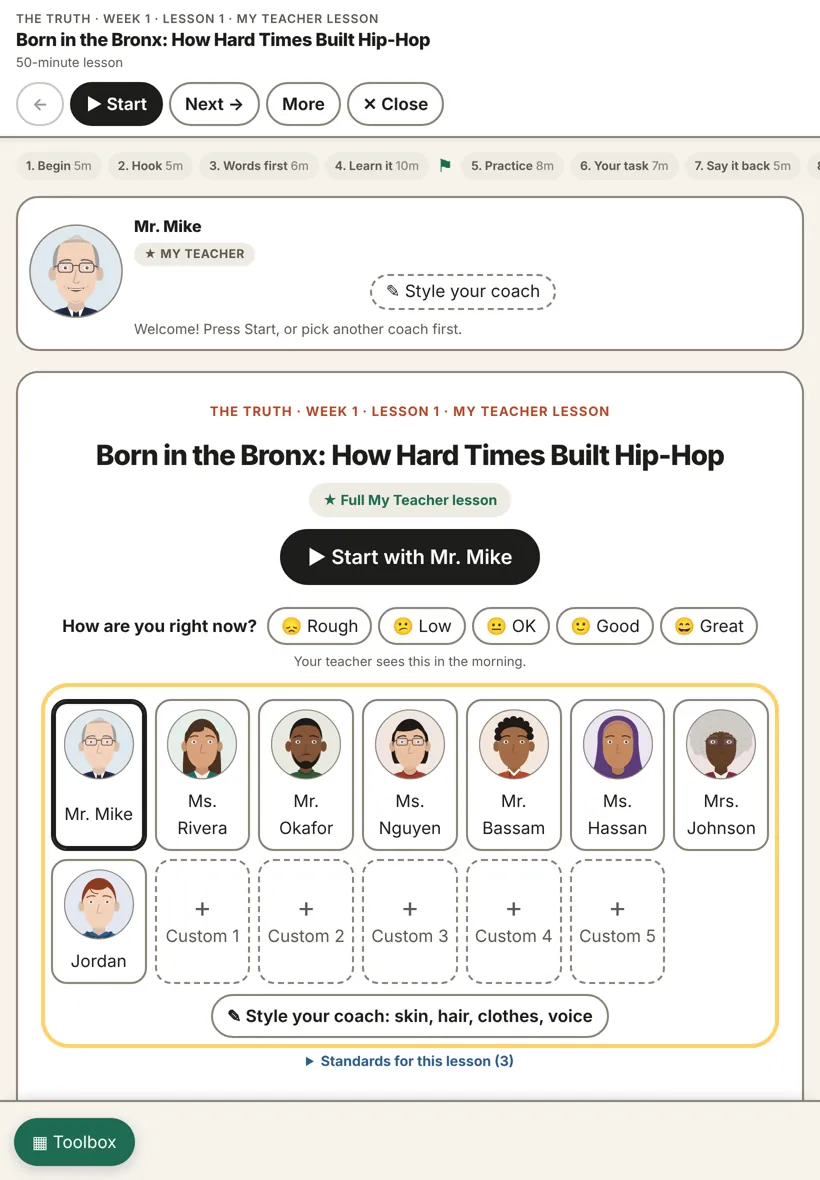
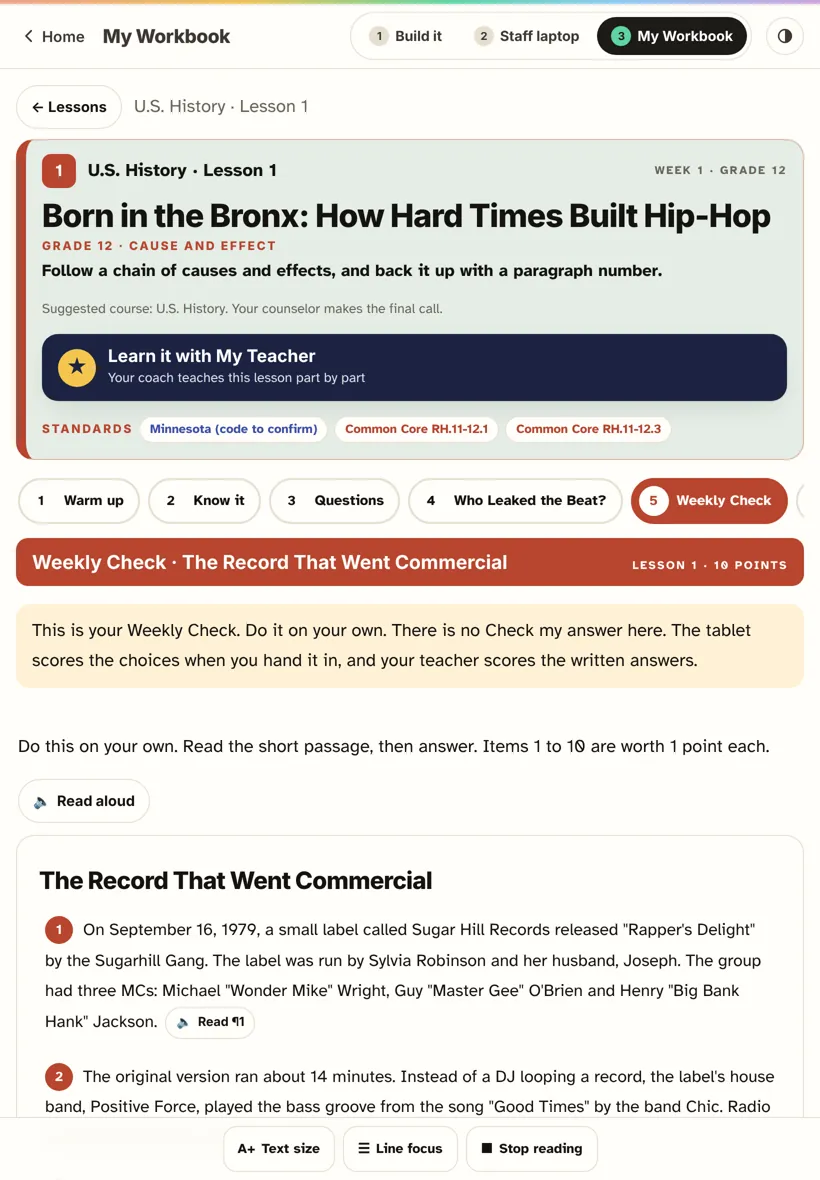
Built into every page.
The maker writes the lessons. The tablet adds the help.
Custom and standard, side by side.
A workbook is the custom version, built for one learner. The site's standard lessons are the same in look and in rigor. Both carry Minnesota and Common Core standards.
The custom workbook
- Built for one learner from their interview, their levels and their picks.
- One week at a time, on their own tablet, with a Weekly Check.
- Minnesota and Common Core on every lesson.
The standard lessons
- Every grade and course on the site, one lesson a week, the same lesson look.
- The same tools: Read to me, Show it, My Teacher, word cards.
- Minnesota and Common Core on every lesson.
How they work together
- Each workbook lesson names the site skills it practices.
- A missed skill on the staff screen links straight to a Quick Print, a Center and a game for it.
- The teacher report lists the lessons done, accuracy and every standard met, ready to sit beside the standard lessons' record.
For the teacher.
Scoring
- Hold Staff on the workbook page to score written answers with the rubric and a model answer.
- The learner sees their score so far, and how many points are waiting for you.
- A results code at the end goes back through the laptop, so next week builds on this one.
New learner, same tablet
- Build it › hold Staff › hold Remove learner for 2 seconds.
- It takes that code's interview, tasks and workbook answers off the tablet. A ticket already on the laptop stays there.
- Removing the last learner leaves the tablet fresh. Add the new learner's code and hand it over.
If a file has a problem
- The tablet checks every file: answer patterns, hints, standards, reading level.
- A file that passes opens at once. One that does not says Can't be used yet with the list.
- Paste the list back into the maker and send the fixed file the same way.
Nothing to sign in to. A code, never a name.To get a workbook, the tablet asks the site for that code only. Learners’ answers stay on their tablet. The prompt stays on your laptop.